
Unshipped order
Cancel selected item/s and issue a partial refund
Use this workflow when the customer only wants part of an unshipped order cancelled, such as extra items, free gift shipping, expedited shipping, sample pack, or Splash tablets. Confirm the exact item/s first, then cancel and refund only those selected items.
Do not guess which item the customer wants removed. If the request is unclear, ask for clarification and place the order on Operator Hold while waiting for the customer response.
- 01
Check fulfillment status
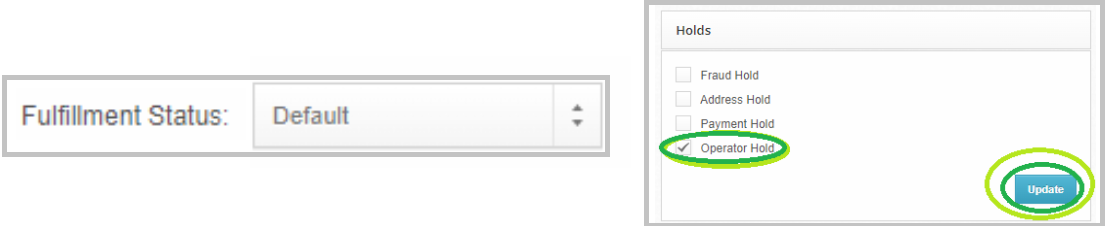
Tool used: Shiphero
- 02
Confirm the item or add-on to cancel
Tagging should be: Cancellation Inquiry + XXResolved - With Reply
Tool used: Gorgias
- 03
Cancel selected item/s

- 04
Refund selected item/s

Tool used: Sticky
- 05
Add the Sticky note
(Channel)
(Concern)
(Concern Details)
(Handling & Resolution)
- 06
Send the partial cancellation macro
Modify product name and description, if needed. Then, hit SEND
- 07
Clean up tags
Possible Concern Tag: Cancellation - All Extra Items (Don't Want Them)
Cancellation - Free Gift (Shipping Fee Too Expensive)
Cancellation - Expedited Shipping (Don't Want It)
Cancellation - Sample Pack (Don't Want It)
Cancellation - Splash Tablet (Don't Want It)
Resolution Tag: XXIssued Partial Refund Cancelled items (Unshipped)
- 08
Log the ticket
Tool used: Tagging Sheet
- 09
Close the ticket