
Unshipped order
Cancel the entire order and issue a full refund
Use this workflow when the customer wants the whole unshipped order cancelled. Confirm the order is still Default/Pending, place it on Operator Hold when clarification is needed, then cancel, refund, tag, track, and close.
If the reason is unclear, ask for clarification first. If the order needs to wait for the customer response, place it on Operator Hold and remove the hold once the cancellation or next action is complete.
- 01
Check fulfillment status
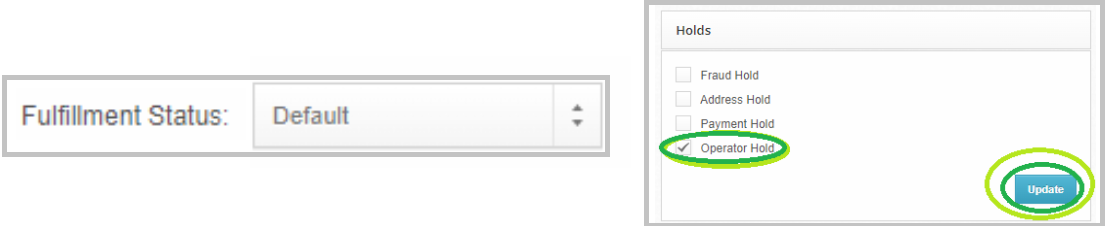
Tool used: Shiphero
- 02
Confirm the cancellation reason
Send Macro (Splash) C3 - Why Cancel Order.
Tagging should be: Cancellation Inquiry + XXResolved - With Reply
For cancellations due to missing information or unintended additions, suggest modifications to get the order back on track.
Tool used: Gorgias
- 03
Cancel the full order
Check off Operator Hold, if you have placed the order on hold.
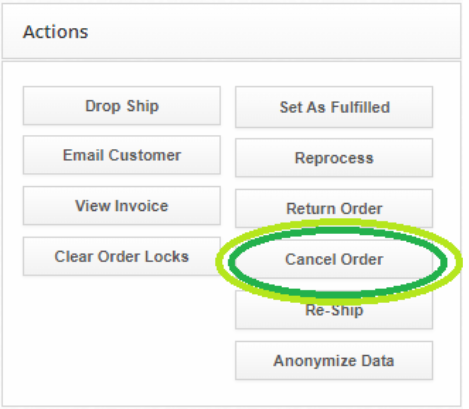
- 04
Refund the entire order

Tool used: Sticky
- 05
Add the Sticky note
(Channel)
(Concern)
(Concern Details)
(Handling & Resolution)
- 06
Send the full cancellation macro
Modify product name and description, if needed. Then, hit SEND
- 07
Clean up tags
Possible Concern Tag: Cancellation - Entire Order (Duplicate Order)
Cancellation - Entire Order (Due To Extra Items added)
Cancellation - Entire Order (Delayed Shipping)
Cancellation - Entire Order (Did not order)
Cancellation - Entire Order (Wrong Details)
Cancellation - Entire Order (Change of Mind)
Resolution Tag: XXIssued Full Refund + Shipping Costs: Cancelled Order (Unshipped)
- 08
Log the ticket
Tool used: Tagging Sheet
- 09
Close the ticket